Steps to Integrate WooCommerce
Scope:
This document covers the standard operating procedures for using the eShipz Smart Dashboard to manage logistics operations, including carrier integration.
Purpose:
The purpose of this document is to guide users through the complete setup and operational workflow of the eShipz Smart Dashboard, ensuring efficient logistics management from a single platform.
Procedure and Steps
1. Login to the Dashboard
Purpose: To access the dashboard and begin using eShipz features.
Steps:
- Go to the eShipz Smart Dashboard login page (https://app.eshipz.com/login).
- Enter the email address shared with you via official communication.
- Enter the password provided in the same email.
- Click the Login button.
- Once logged in, you will be able to view the main dashboard containing order, shipment metrics, and reports.
2. Add a Contracted Carrier Partner
Purpose: To integrate third party logistics providers for shipping operations.
Steps:
- Click on the Settings tab.
- Navigate to the Carriers option.
- Click the plus icon to add a new carrier.
- Select the desired carrier from the list.
- Enter the required API credentials or authentication details.
Example: Selecting Bluedart >> Credentials
- Choose the label type based on preference.
- Upload your company logo.
- Agree to the terms and conditions.
- Click Validate and then Save.
- The carrier is now successfully added and ready for use.
3. Add and Sync Sales Channels
Purpose: To import orders from integrated sales platforms.
Steps:
- Click on the Settings tab.
- Go to the Sales Channel section.
- Select the sales channel you wish to connect.
- Select Woocommerce.
1: Login to woocommerce store and under dashboard click on woocommerce.
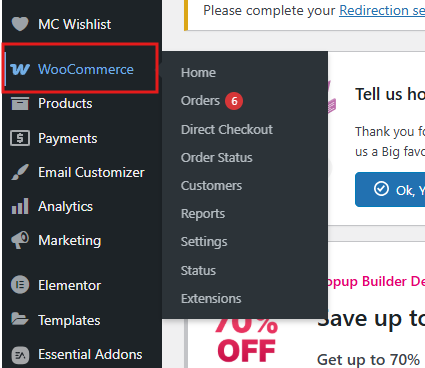
2: Click on settings.
3: Click on ADVANCED.
4: Click on REST API.
5: Click on Add Key.
6: Create a new key named "eShipz" with read and write permissions, then click on "Generate Key." A new consumer key and consumer secret will be generated.
7: Then go to eShipz account, copy and paste all the required details from woocommerce store: Store URL, Consumer secret, Consumer key, Status code and select the Woocommerce version as Wordpress(4.4 or later) Woocommerce(3.5.x or later). Once done click on save.
Sync and Ship Orders
Steps: Sync your Orders:
- Navigate to the Orders tab.
- Click on Un-shipped
- Click the Refresh icon to sync the latest orders.
Steps to Create Shipment:
- In the Orders tab go to Unshipped and then select the Order then click on Create Shipment.
- Enter additional shipment details if necessary.
- Click Fetch Services to retrieve shipping options.
- Select your preferred carrier.
- Click Book and Generate Label to confirm.
- Once the Label generated click on Download Label.
View Shipment Details
Steps:
- Navigate to the Shipments tab.
- Click on Forward to view the shipment details including weight and declared values.
Add Warehouse Address
Steps:
- Go to the Settings tab.
- Select Pick-Up Warehouses.
- Enter warehouse address and contact details.
- Click Save to store the information.
If you need help or encounter errors, send us an email at hello@eshipz.com as the support contact. Additionally you can create a ticket by your own Go to eShipz dashboard on right middle you will find
Help.